Outlook ‘Cannot Expand Folder’ Error – Causes & Solutions

Several Outlook users have reported on different forums that they have encountered the “Cannot expand the folder” error when trying to access a shared mailbox.
Here are some user queries:
Query 1: If I try to open the shared inbox in the classic outlook I receive a pop up saying ‘Cannot Expand Folder’, this does not happen when I switch to the new look OR use the online outlook server. Please Help!
Query 2: One of my businesses shared mailboxes is having an issue with some users. When I add full access to it, it is accessible via outlook web app but when you try to open it in outlook I just get the Cannot expand folder error. I’ve tried both cached and uncached mode, even tried other computers and saw the same problem. Can anyone help with this?
This issue can occur due to varied reasons – internal and external. This article explains the reasons behind the “Cannot expand the folder” error in Outlook and the troubleshooting solutions to resolve it.
What are the Reasons for Outlook Cannot Expand the Folder Error?
Below are some possible reasons that can cause this error in Outlook:
- Insufficient permissions
- Faulty add-ins or compatibility issues
- Corrupted Outlook profile
- Damaged Outlook/MS Office program files
- Large or damaged Outlook data file (OST)
- Outdated Outlook version
- Server connectivity issues
How to Fix Outlook Cannot Expand the Folder Error?
You can follow the below tried and tested solutions to resolve the “Cannot expand folder” error in Outlook.
-
Uncheck Cached Exchange Mode
You may encounter the “Cannot Expand the Folder” error due to synchronization issues between Outlook and mailbox server. In such a case, you can disable the Cached Exchange Mode to resolve this issue. Here’s how:
- Launch Outlook application.
- Go to File and click Account Settings > Account Settings.
- Select your email account and click on Change.
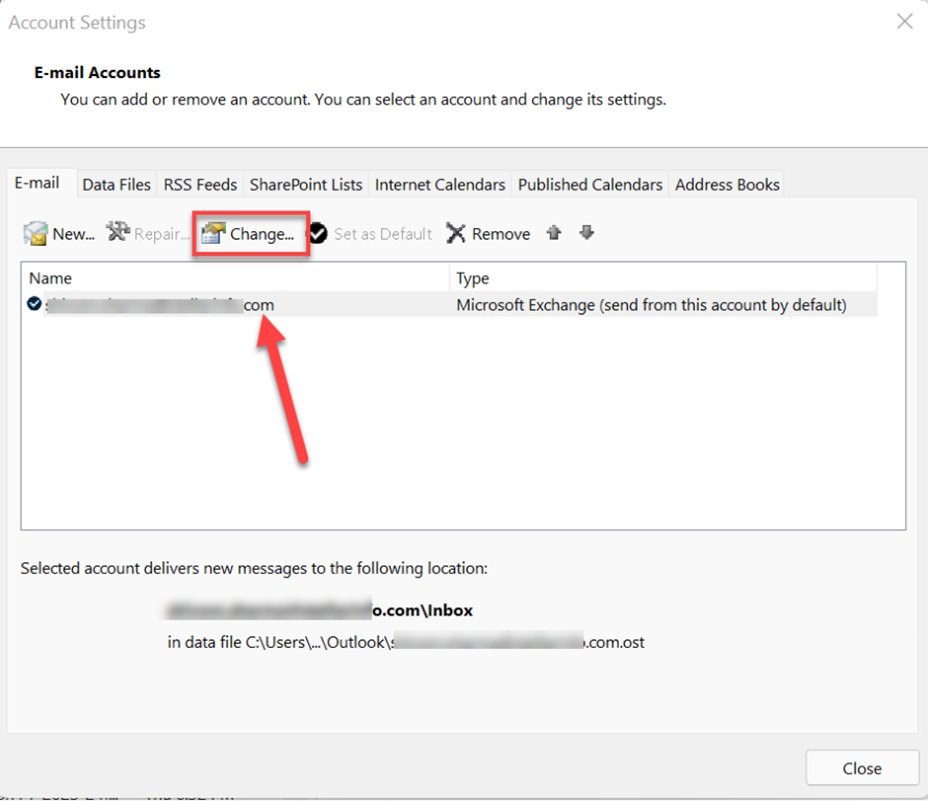
- Uncheck the option Use Cached Exchange Mode.
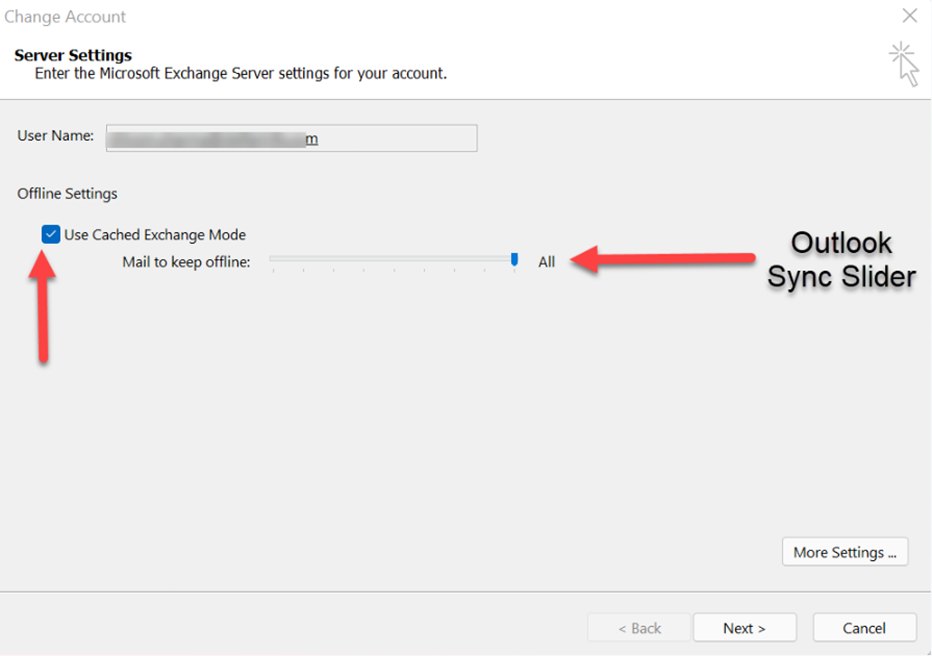
- Click on Next > Finish.
- Restart Outlook to check if the error is resolved.
-
Check Mailbox or Folder Permissions
You may encounter this error if you don’t have required permissions on the folder where the Outlook data file is stored. Follow these steps to check and assign the permissions:
- Right-click the folder where the OST file is stored.
- Select Properties > Permissions.
- Make sure the “Folder Visible” is checked. If not, then click “Edit” and enable it.
- Allow “Full Access” permission.
- Click OK to save the changes.
Note: You need admin access to make these changes. If not, then contact your administrator or IT team.
-
Check and Disable Incompatible Add-ins
At times, faulty third-party add-ins can interfere with Outlook operations, resulting in such error. You can find the faulty add-ins and disable them to resolve the issue. Follow the instructions given below:
- Close Outlook application.
- Press Windows + R keys together.
- Type Outlook.exe /safe and click OK. This will open Outlook in Safe Mode.
- Go to File > Options > Add-Ins.
- Select Com Add-ins and click on Go.
- This opens the list of all third-party add-ins.
- Uncheck all the add-ins and click OK to disable them.
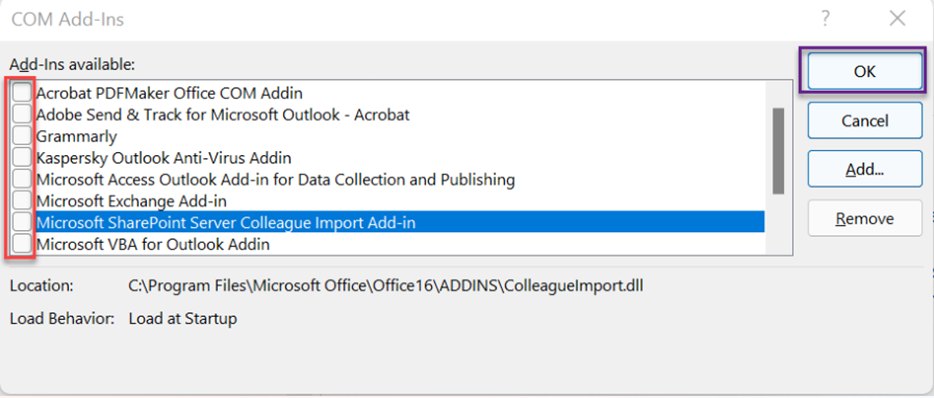
Restart Outlook and check if the error is resolved. If yes, this indicates the error was caused by a faulty or incompatible add-in. In this case, you need to find the faulty add-in and remove it permanently. For this, go to the add-ins window, enable one add-in at a time and restart Outlook. If the error occurs after enabling a particular add-in, remove it.
-
Repair Microsoft Office
If your Microsoft Office installation files are damaged, then this would be one of the reasons for the “Cannot expand folder” error in Outlook. You can fix this error by repairing Microsoft Office. To repair it, do the following:
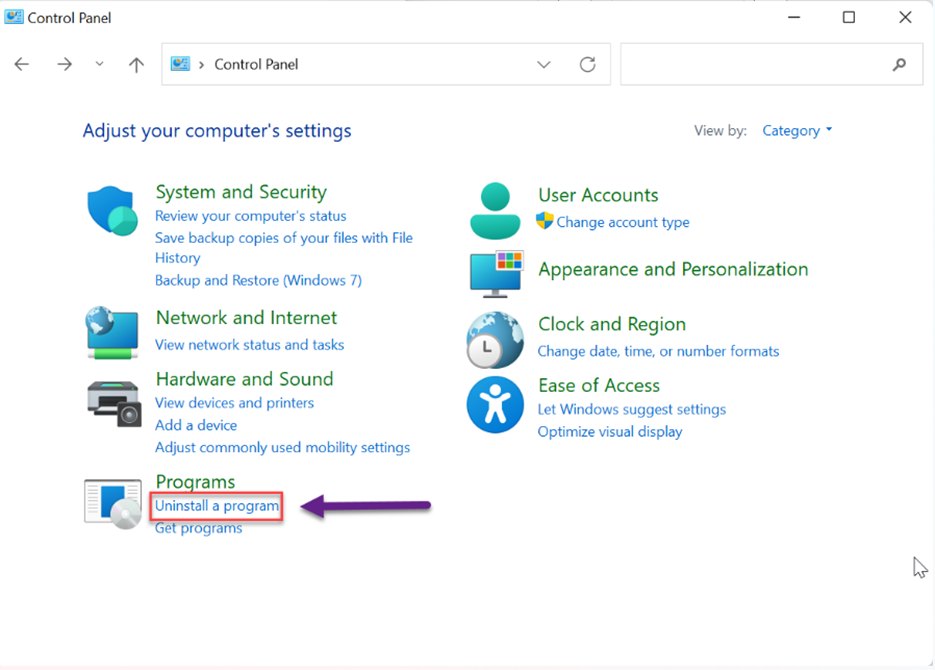
- Open Control Panel.
- Select the ‘Uninstall a program’ option.
- Choose Microsoft Office from the list.
- Click the Change button.
- Choose the Repair option and continue with repair wizard.
- Once the repair process is complete, reboot your system.
- Open Outlook.
If the error still not resolved, then you have to uninstall Microsoft Office and install it again.
-
Create a New Outlook Profile
Corruption in your Outlook profile might also be one of the causes for this error. To fix the issue, you can create a new profile and replace it with the old, corrupted one. Follow these instructions:
- Open Control Panel > Mail (Microsoft Outlook). Or press Windows + R, type control mlcfg32.cpl, and press Enter.
- Click Show Profiles.
- Click Add to create a new profile.
- Enter a name for the new profile (e.g., “Outlook New”).
- Click OK.
- Follow the wizard to add your email account.
- Once configured, select the new profile under “When starting Microsoft Outlook, use this profile”.
- Click OK and restart Outlook.
-
Recreate Outlook OST File
The Offline Storage Table (OST) file can become corrupted, causing folder expansion errors. You can recreate outlook OST file it to resolve the issues. Follow the below steps:
- Close Outlook completely
- Press Windows + R, type %localappdata%\Microsoft\Outlook, and press Enter.
- Locate your OST file.
- Rename the file (e.g., add .old at the end) or move it to another location for backup.
- Restart Outlook.
- Outlook will automatically create a new OST file and re-sync your mailbox data.
After this, check the new OST file for any missing mail items. If there are any, you can recover them from the backup OST file (created above). For this, you have to use a professional OST to PST converter tool, such as Stellar Converter for OST. This tool can extract mail items from the inaccessible or orphaned OST file and save them to PST. In this case, the backup OST file. After conversion, you can import the PST into your Outlook profile.
Conclusion
The “Cannot Expand Folder” error in Outlook might be the result of insufficient permissions, sync problems, corruption/damage in data file, faulty add-ins, and others. By following the solutions mentioned in this article, you can resolve this error.
If corruption/damage in OST file is the cause, then just recreate the file. Remember to check for any missing mail items in the new OST file. In there are any, then take the help of Stellar Converter for OST. This is an advanced OST to PST converter tool that can recover the items from your backup (orphaned) OST file. Furthermore, you can save your recovered mailbox items in several other formats like PDF, HTML, EML, etc.

Charles Poole
Charles Poole is a versatile professional with extensive experience in digital solutions, helping businesses enhance their online presence. He combines his expertise in multiple areas to provide comprehensive and impactful strategies. Beyond his technical prowess, Charles is also a skilled writer, delivering insightful articles on diverse business topics. His commitment to excellence and client success makes him a trusted advisor for businesses aiming to thrive in the digital world.